One key, pasted once. From then on you trade Polymarket on a ladder, with one-click back and lay — and your money never leaves Polymarket.
The Polymarket account from steps 1 and 2. You can sign in even with zero balance — you just cannot bet.
Layback X signs your bets on behalf of your Polymarket wallet. To do that it needs your wallet key — the private key Polymarket created for you at sign-up, kept in a service called Magic.
Two things worth understanding first, because they are what makes this safe: the key goes from Magic straight into the app on your computer, never through a server of ours; and your balance stays in Polymarket's custody — Layback X is the control panel, never the vault.
Install the app for your system and open it. On first run it opens straight to the sign-in screen.
Free. Windows 10 or later, macOS 12 or later.
On the sign-in screen, above the Wallet key field, there is an Export key from Magic link. Click it: the app opens Magic's official site in your browser — never inside the app, precisely so you can check the address bar.
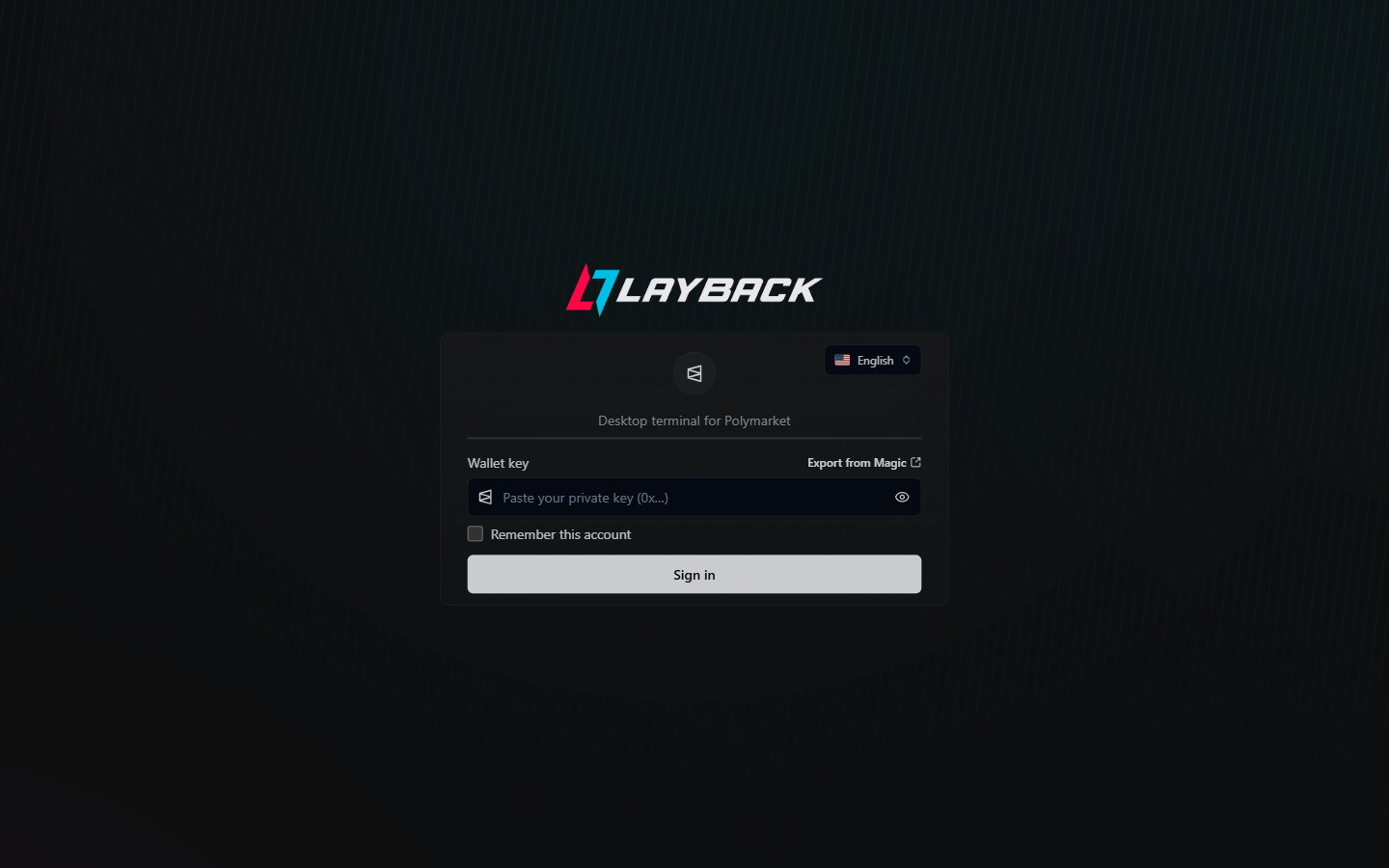
Magic's first screen is a sign-in — Secure private key access. Use the same method you created your Polymarket account with: if it was email, type that email and click Log in (Magic sends you a code); if it was Google, use the Google button. Webauthn, Telegram and Steam also appear.
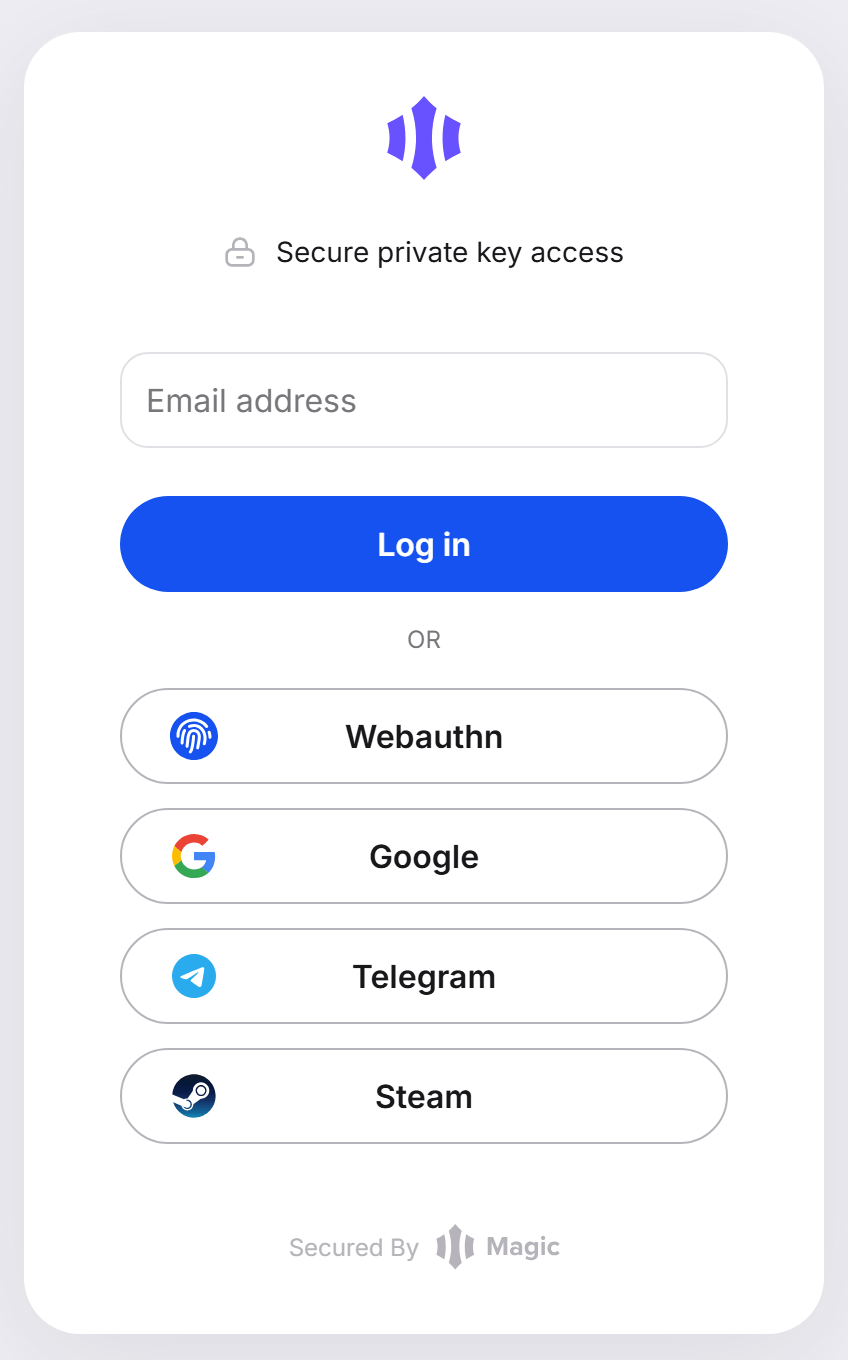
After signing in, Magic asks you to tick the boxes agreeing to the wallet service terms. Tick them and click Reveal Private Key.
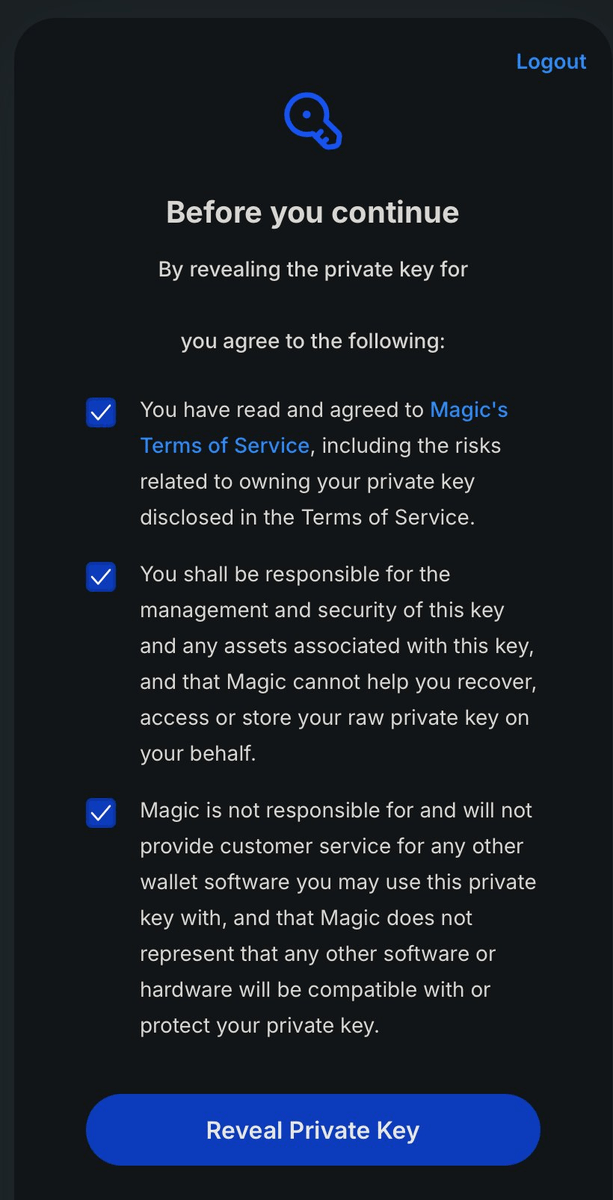
Use the page's own Copy button. If it looks greyed out, click reveal first. The key goes to your clipboard — you do not need to write anything down or memorise it.
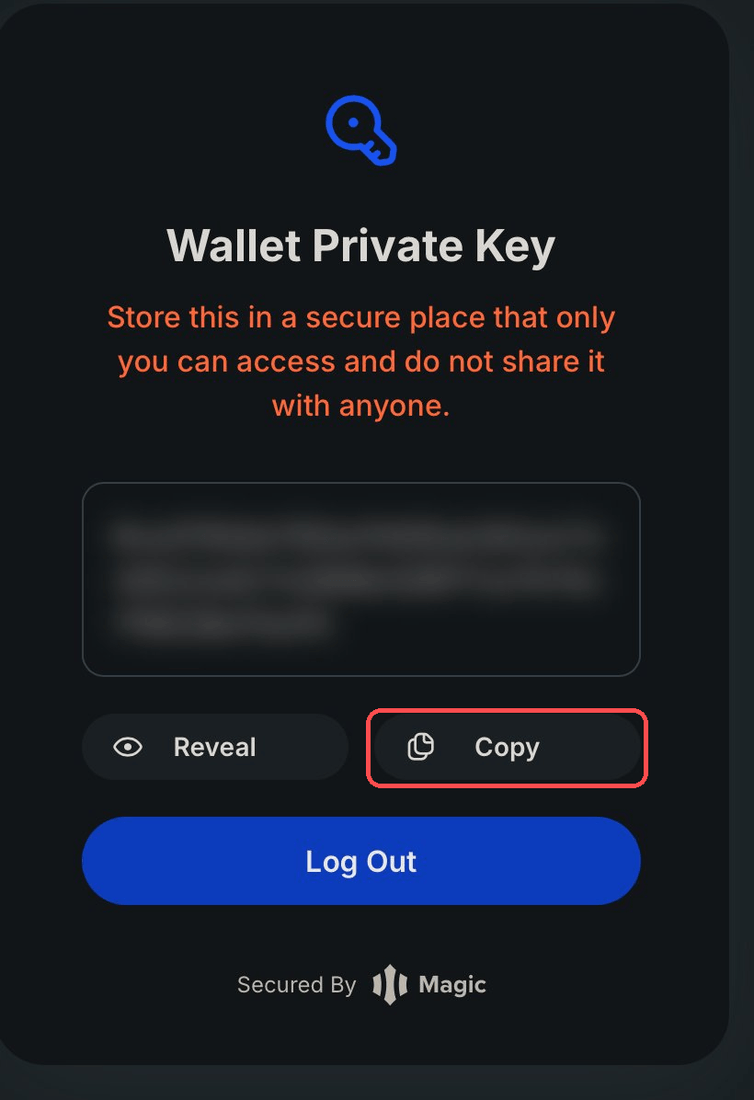
Go back to Layback X, click the Wallet key field and paste with Ctrl+V on Windows or Cmd+V on macOS. The field shows dots; the eye icon beside it reveals the contents if you want to check.
Also decide about Remember this account. Ticked, the app stores the key encrypted by your operating system — DPAPI on Windows, Keychain on macOS — in a separate file on your computer, and next time you sign in without pasting anything. Unticked, nothing is written and you repeat this step every session.
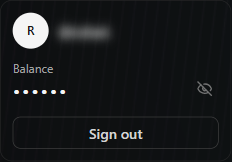
The app talks to Polymarket, finds the account tied to that key and opens. In the account panel at the bottom of the sidebar you will see your name and your Balance — the same number Polymarket shows in the browser. The eye icon beside it hides the value when you are recording your screen.
You may see a notice saying Account not enabled for trading yet. That is not a login problem: your wallet still has to authorise Polymarket's contracts to move your USDC. It is a one-time authorisation, on the blockchain.
Click Enable trading and wait. Nothing is signed unless you confirm it here, and the app never does it on its own initiative. Once done, it does not ask again.
Account not enabled for trading notice, with the Enable trading button
That's it. You are connected and can open any market on a ladder. The user guide shows how to find markets, place bets and set the ladder up your way.
The key arrived incomplete or something else came with it. Go back to Magic, use the Copy button again and paste without editing. A hand-typed key almost always lands here.
The key is valid but belongs to a different wallet. Almost always this means you signed in to Magic with a different email than the one you used on Polymarket. Sign out of Magic, sign in with the right email and export again.
No. You can sign in with zero balance and still browse, see markets and look at the ladder. You just cannot bet: with no balance Polymarket rejects the order.
Usually it is connectivity. Your key is still saved on the computer — check your connection and try signing in again. If it persists, paste the key once more.
Yes, it is the same Polymarket account seen from two places. Export the key on each machine through Magic, and avoid queuing bets on both at once in the same market — they draw on the same balance.
In the account panel, Sign out. That ends the session and deletes the key saved on this computer.
This message appears when you try to bet without having completed the authorisation in the last step. Open the account panel and click Enable trading.


