From the first screen to cashing out: where the markets are, how the ladder works, how to bet and how to set it all up your way.
Polymarket sells shares of outcomes: you buy “Yes” at 70¢ and, if you are right, each share is worth 1 USDC. That is a correct way to show price, but it is not how an exchange bettor thinks.
Layback X translates that into what you already know: decimal odds, one-click back and lay, liquidity stacked on a ladder, traded volume by price, P&L per runner and cash out. 70¢ becomes odds 1.43 — the same market, in the language of someone who trades sports exchanges.
The main window has four areas in the sidebar: Home, Sports, My Bets and Settings. Each market you open gets its own window, so you can stack as many as you like across displays.
There are two routes, and they serve different purposes: Home to sweep everything Polymarket has, Sports to go straight to games.
In Home you pick an area — the top-level theme — and browse inside it. The areas are Politics, Sports, Crypto, Finance, Geopolitics, Earnings, Tech, Culture, World, Economy, Climate & Science and Elections.
Inside an area you get sub-areas as chips, and when the area is Sports you also get sport chips (Soccer, Basketball, American Football, Baseball, Ice Hockey, Tennis, E-sports) plus a Championship filter, with type-to-filter for when the list is long.
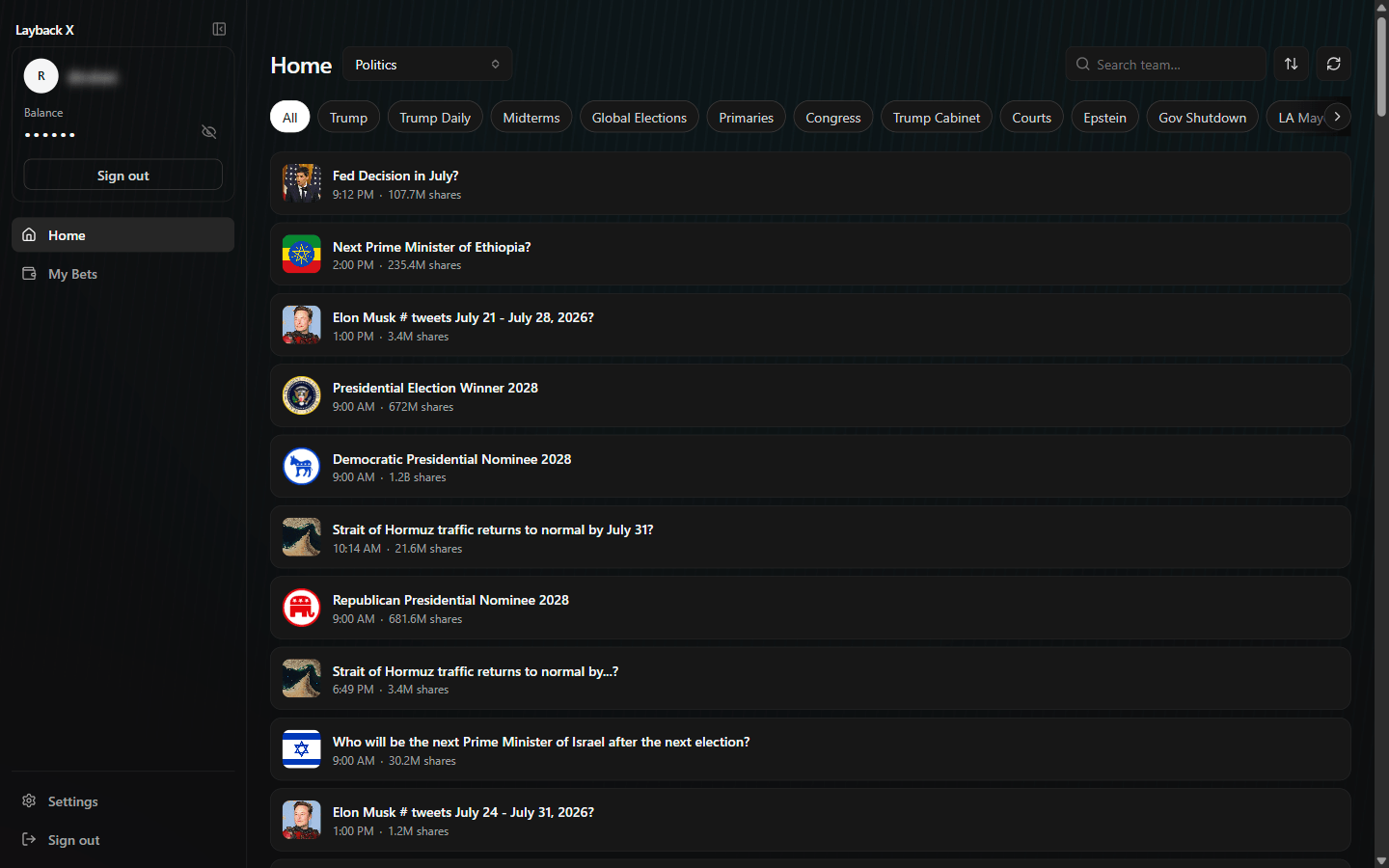
Sports has two tabs. Games lists fixtures with kick-off times, in columns Home, Draw, Away and Contracts. Futures holds season-long markets with no head-to-head — winner, qualification, top scorer.
You filter by day (All, Today, Tomorrow or a date), sort by 24h volume, total volume, liquidity, start date or end date, and search a team by name. Searches ignore the chosen sort and come back by relevance. Live games get a LIVE badge, and you can favourite championships to keep them at the top.
Clicking a game opens that fixture's market panel, grouped: Moneyline, Spreads, Totals, period markets (first and second half), Correct score, Both teams to score, Double chance, corners, penalties, extra time, qualification, plus the per-quarter equivalents in basketball and per-inning in baseball. Picking a group opens its ladder.
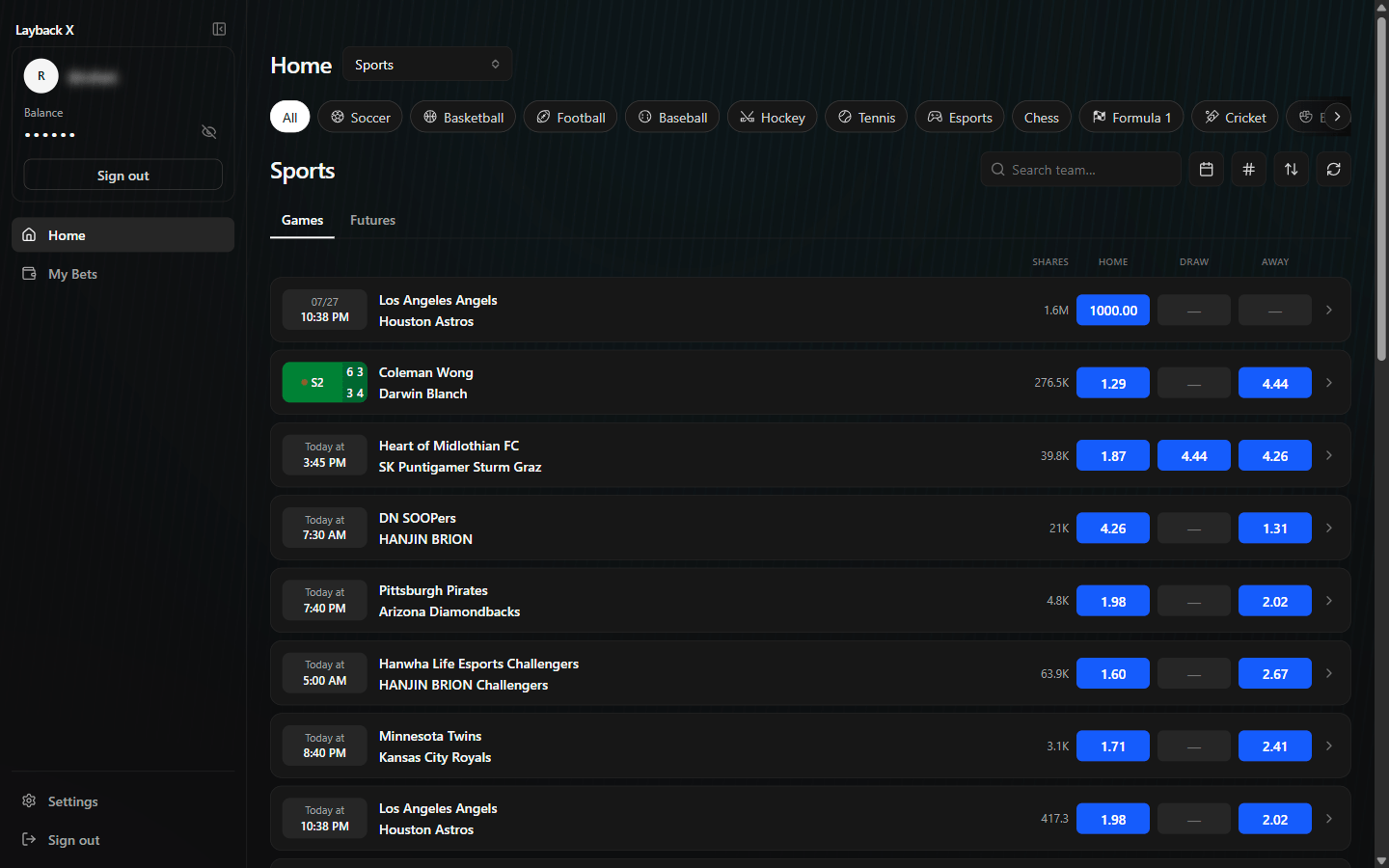
Each market opens in its own window. Inside it there is one ladder per runner — each possible outcome: “Home”, “Draw”, “Away”, “Yes”, “No”. They sit side by side, and you drag them by the handle at the top to reorder, close the ones you do not need and reopen them from the runner selector.
At the top of the window you get the market state — Live, Suspended or Closed — and the feed state: Connected, Reconnecting or Disconnected. Worth a one-second glance before betting: a suspended market takes no orders, and a reconnecting feed means the prices on screen may be stale.
| Column | What it shows |
|---|---|
| Back | Money available for you to bet on the runner at that odds. Clicking places the bet. |
| Price | The odds. The only mandatory column, and the only one that never abbreviates values. |
| Lay | Money available for you to bet against the runner at that odds. |
| Traded | How much has traded at each odds, in USDC. Shows where the market actually went. |
| P&L | Your result on that runner if the market settles at that odds. Toggles between value and percentage. |
The column order is yours: drag them on the Columns tab of the ladder settings. You can also hide the ones you do not use — except Price.
The Back and Lay headers show the weight of money: the share of liquidity on each side, as a percentage. Read it as pressure, not as probability.
Beside the ladder there is a side chart with the price movement. And the centre button jumps to the last traded price, handy after you have scrolled the ladder looking at far-off odds.
Betting is clicking a cell: Back to bet the runner happens, Lay to bet it does not. The odds are the row you clicked, and the amount is whatever is in the stake field.
Hovering a cell, the position readout already shows what that bet would do to your result: green is profit if the runner wins, red is loss if it loses. You can check before clicking.
The amount field has three modes, and the button beside it cycles through them:
Next to it are the stake presets: from 1 to 8 fixed-value buttons that you define, reorder by dragging and use with one click. That is what lets you bet at live-game pace without typing.
In the ladder settings you choose the bet trigger, and this is the setting that changes the feel of the app the most:
| Mode | When it bets |
|---|---|
| Single click | On mouse release. The default balance. |
| Fast click | On press, without waiting for release. The fastest and the least forgiving. |
| Double click | Only on the second click. Guards against a stray click. |
| Confirmation dialog | Opens a dialog with side, price and amount for you to confirm. |
There is also drag to bet: press a Back or Lay cell and drag to bet at every odds you pass. It works only in Single click and Fast click modes, and there is a cap on how many odds one drag can take — so a wide drag does not silently become ten bets.
Below each ladder sits the bets panel, with your bets on that runner split into Matched and Unmatched. Matched found a counterparty and is already a position; unmatched is still queued and can be cancelled.
Each row shows date, odds and stake, with a button to cancel that bet and another to cancel every unmatched bet on the runner. You drag the panel's top edge to resize it, or switch the panel off in settings and give the space back to the ladder.
Cash out closes the position before the result, betting the other way to lock in what you have — profit or loss. There is per-runner cash out and cash out all, which does it across every runner at once.
Freebet is the other side of the same idea: instead of levelling the result, it leaves the position with profit if the runner wins and zero if it loses.
Every refusal shows as a notice in the window, with the reason. The ones you will see most:
| Notice | What to do |
|---|---|
| Insufficient balance | Deposit on Polymarket or bet less. |
| Your balance is held in bets | You have balance, but it is reserved in queued orders. Cancel some. |
| Below this market's minimum | Increase the bet amount. |
| This market doesn't accept those odds | The odds do not land on a valid increment for that market. Use a neighbouring row. |
| Polymarket isn't authorised to use your balance | Open the account panel and click Enable trading. |
| You already have this same bet queued | Nothing was duplicated. Check the bets panel. |
Every shortcut is configurable and can be switched off one by one, on the Shortcuts tab of the ladder settings. Click a shortcut, press the new key; if it is already in use, the app tells you.
| Action | What it is for |
|---|---|
| Cancel all bets | Clears the window's whole queue. The panic key. |
| Cancel all Back | Only unmatched back bets. |
| Cancel all Lay | Only unmatched lay bets. |
| Cash out all | Closes positions across every open ladder. |
| Centre all ladders | Snaps them all back to the last traded price. |
| Cycle stake mode | Cycles stake, liability and profit. |
| Stake / liability / profit mode | Jumps straight to one mode, without cycling. |
| Next and previous stake preset | Changes the amount without leaving the keyboard. |
| Minimise window | Gets the market window out of the way. |
The settings button inside the market window opens four tabs: General, Shortcuts, Columns and Sounds. Everything here applies to all market windows, not just the one in front of you.
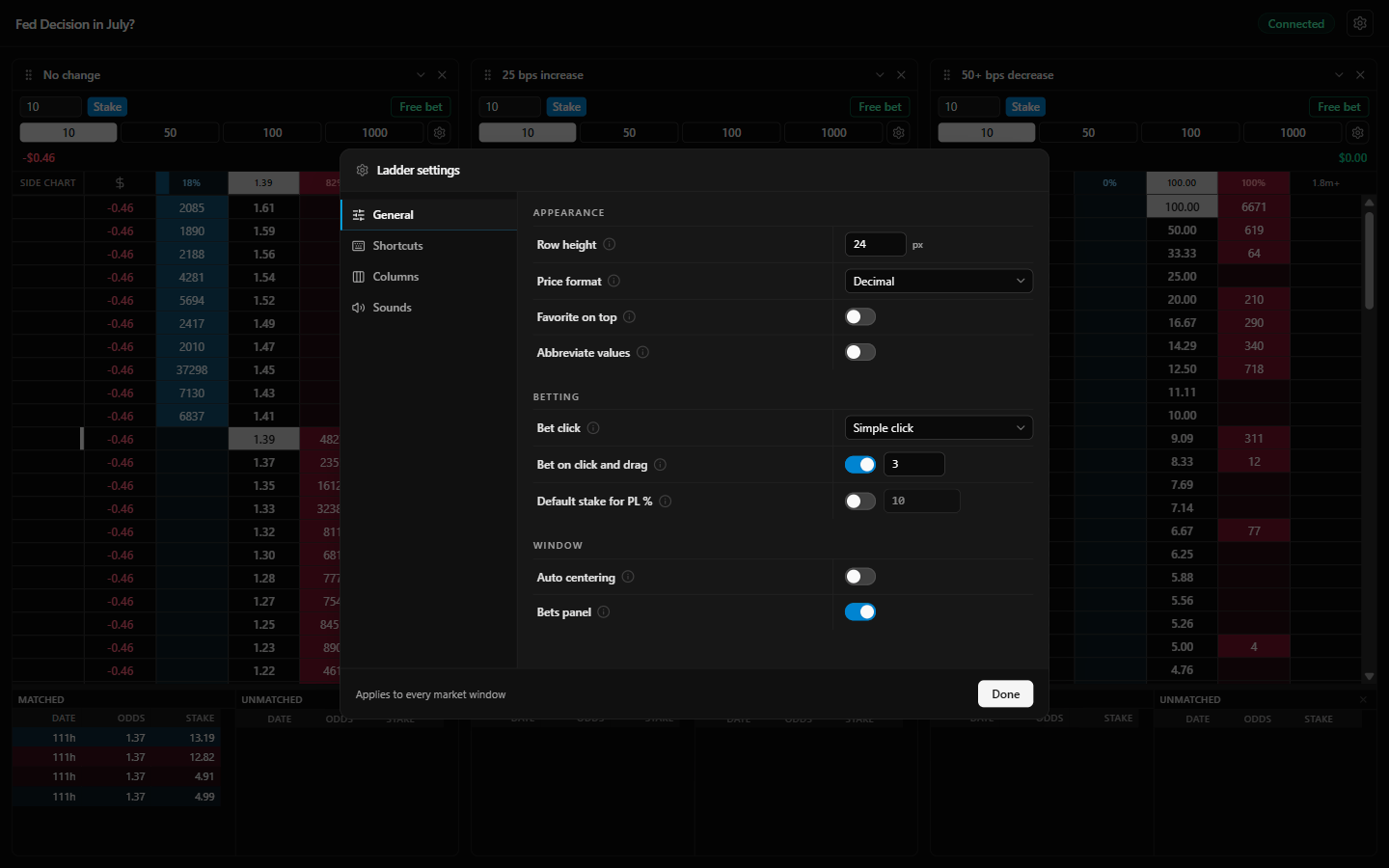
| Setting | What it does |
|---|---|
| Price format | The unit of the Price column: decimal, ¢, percentage, fractional or American. |
| Row height | From 16 to 48 pixels. Short rows show more odds; tall rows misclick less. |
| Auto centre | Recentres when the last traded price scrolls off screen. Pauses while your cursor is over the ladder, so it never moves out from under your click. |
| Favourite on top | Off, the highest odds sit on top. On, the favourite sits on top. |
| Abbreviate values | Back, Lay, Traded and the bet in the Price cell switch to 1.6k and 1.2m. The Price column never abbreviates. |
| Inverted back and lay liquidity | Off, each column shows the money resting on its own side. On, it shows what that side can take right now. The side you bet does not change. |
| Drag to bet | Enables dragging, with a cap on how many odds one drag takes. |
| Fixed stake for P&L % | On, the percentage divides by one fixed stake across every market. Off, it divides by the risk of each runner's first matched bet. |
| Bets panel | Shows or hides your bets below each ladder. |
On Columns you drag to reorder and switch each one on or off, with a preview beside it showing the result before you close. Price is mandatory.
On Sounds you pick a sound for four events — Bet placed, Bet cancelled, Bet matched and Market suspended — with variants to try and the option to mute each one. The matched sound is the one that helps most: you know you got filled without looking at the panel.
This is the whole-account view, regardless of which market windows you have open. The header shows Bankroll (the account total), Available (what is not tied up in bets) and Open P&L (the result of positions that have not settled).
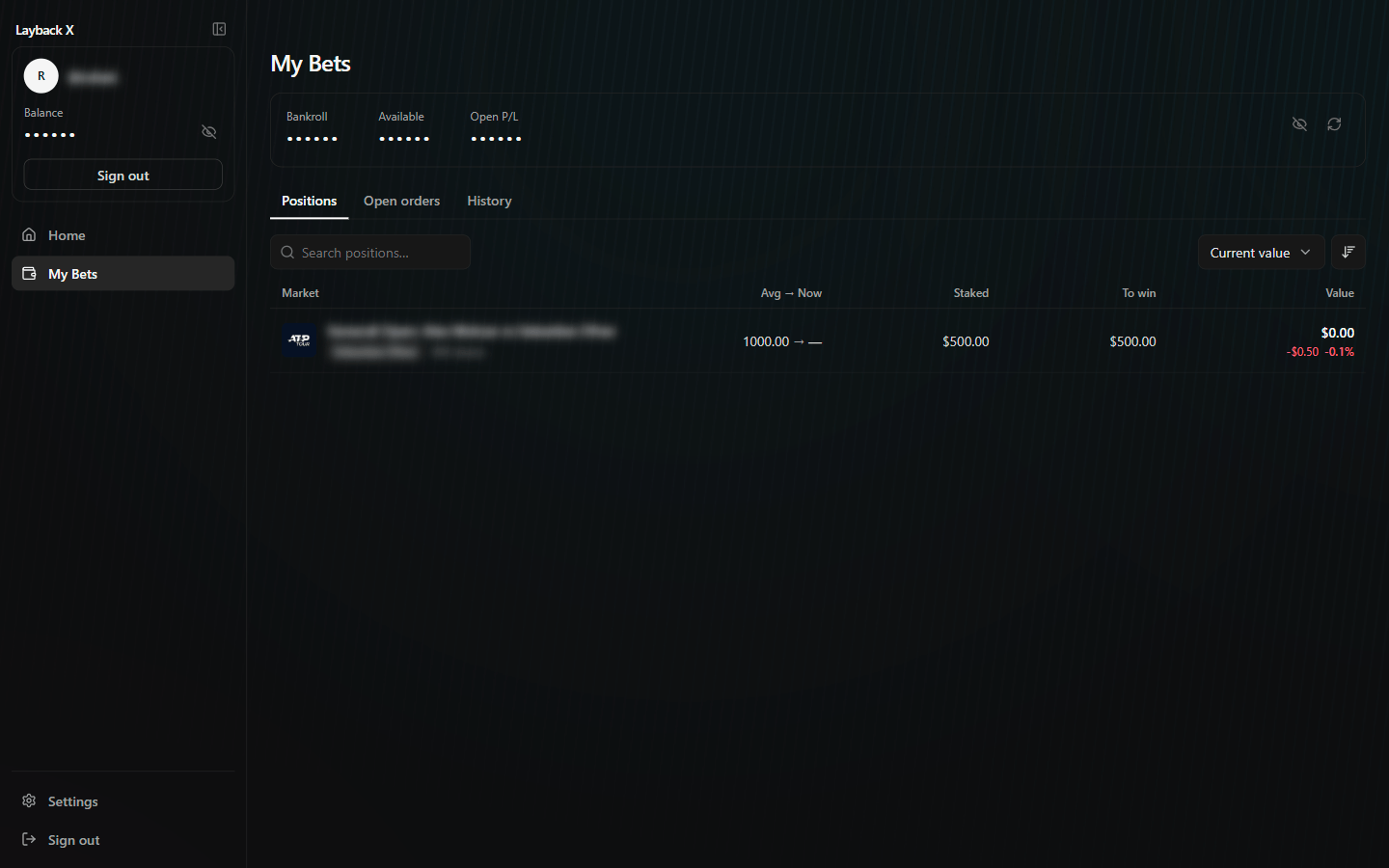
All three tabs have search over what is already loaded, sorting and Load more. History filters by period (today, 7 days, 30 days or chosen dates) and by group: buys, sells, deposits, withdrawals, redemptions, rewards and structure.
The types you will see in history: Trade, Buy, Sell, Split, Merge, Win, Loss, Reward, Conversion, Deposit, Withdrawal, Yield, Maker rebate, Taker rebate and Referral reward.
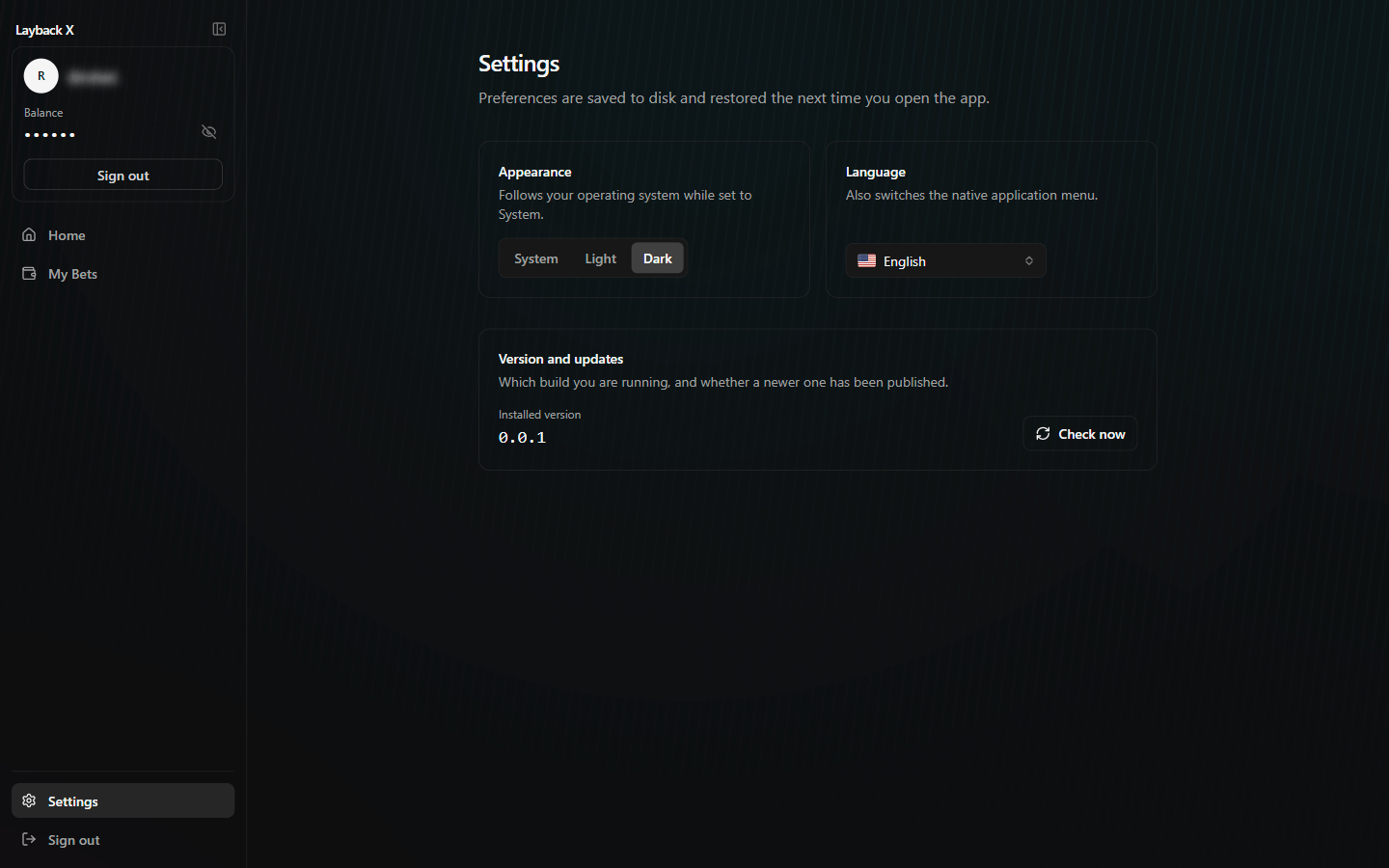
In Settings you choose the appearance (System, Light or Dark — on System it follows your operating system) and the language, which also switches the app's native menu. Preferences are saved to disk and come back next time you open it.
For screen recording or trading in public, the eye icon in the account panel hides your balance. And the sidebar collapses, giving width back to the ladders.