All you need is an email. Polymarket creates the wallet for you behind the scenes — no extension to install and no recovery phrase to write down.
An email you can open right now, because Polymarket sends a confirmation code.
Polymarket is the prediction market exchange where your bets actually live. Layback X is the interface you will trade through — but the account and the money always sit on Polymarket's side, in your name.
If you have used crypto before, you might expect a wallet, an extension and a 12-word phrase. None of that here: you sign up with an email and the wallet is created for you. Just remember which email you used — it is what gets you back in later.
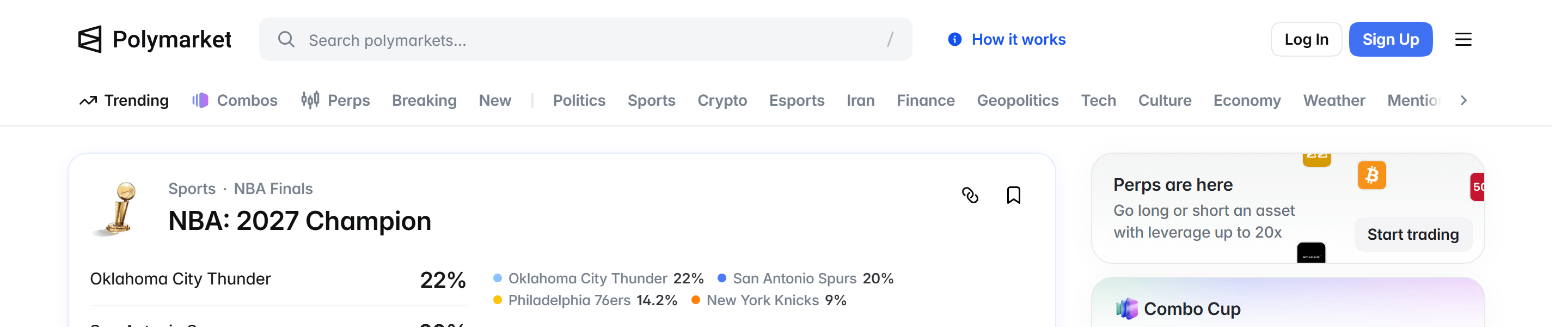
Go to polymarket.com and click the blue Sign Up button in the top-right corner. If you already have an account, the button next to it is Log In.
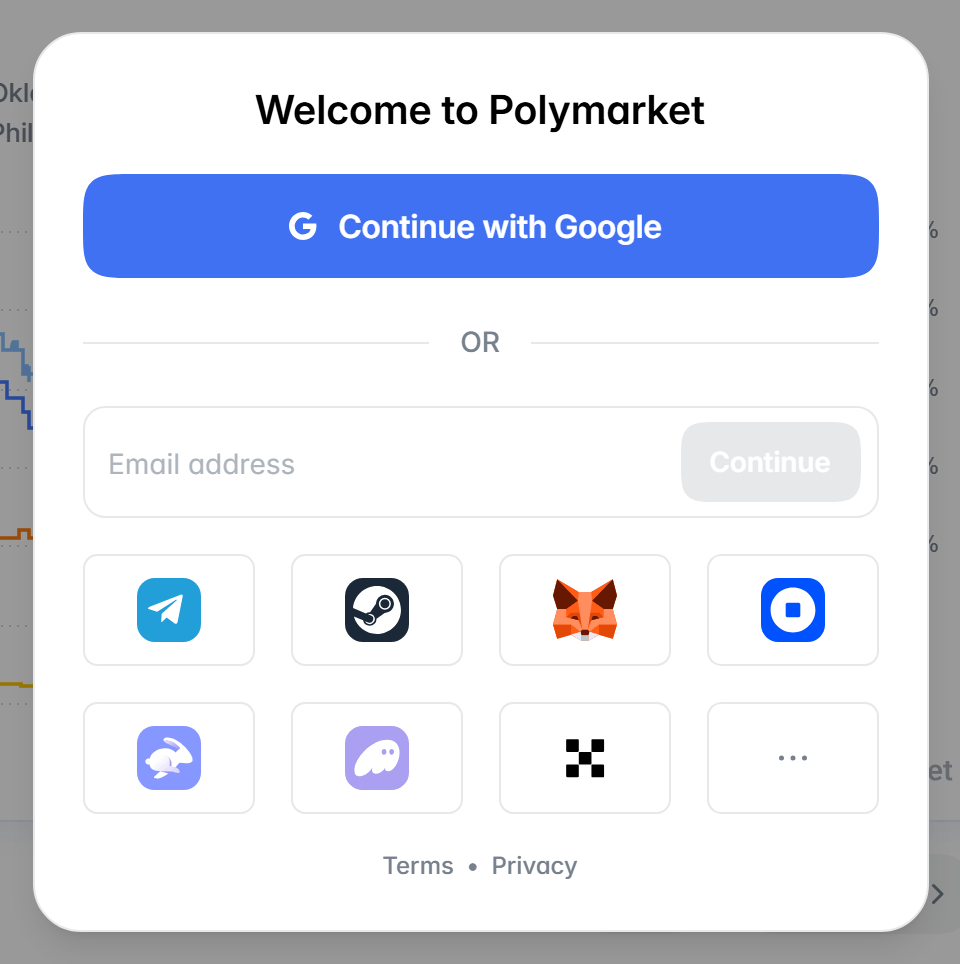
The Welcome to Polymarket dialog opens. The first button is Continue with Google — if you use it, skip the next step, since no code is sent. To sign up by email, use the Email address field below the “OR” and click Continue.
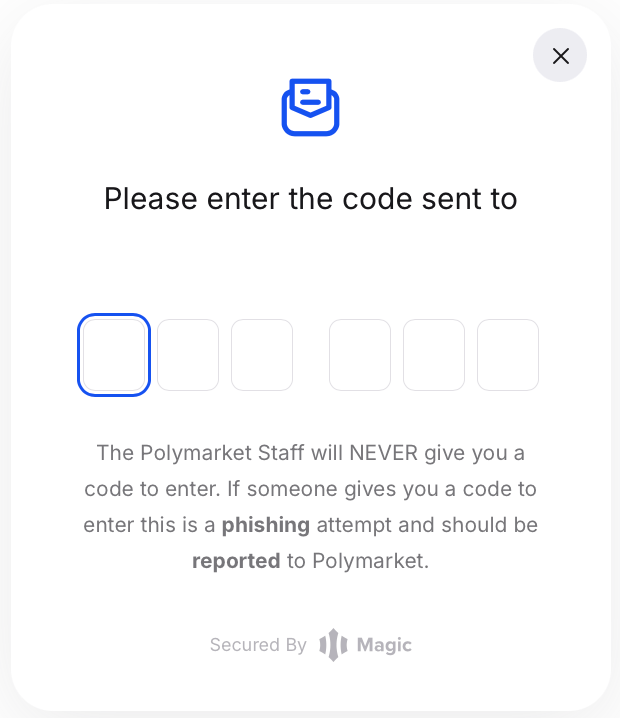
Polymarket emails a six-digit code to the address you gave. Copy it and type it into the boxes. If it does not arrive within a minute, check your spam folder.
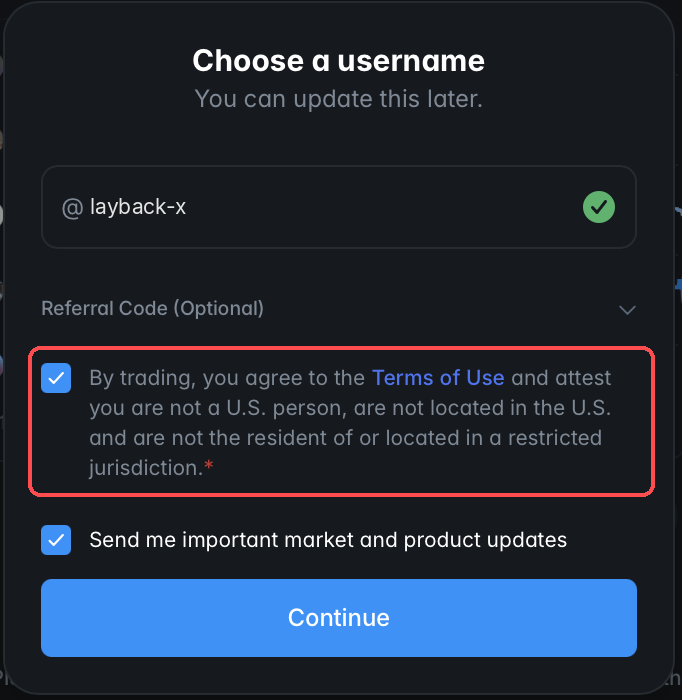
Choose the name you appear under on Polymarket — you can change it later. Tick the box accepting the Terms of Use, which includes confirming you are not in a restricted region, and finish.
Done: your account exists and the wallet was created along with it. Your balance shows $0 at the top — step 2 fixes that.
Look in spam and in the promotions tab. If it is not there, close the sign-up dialog and start again: that issues a fresh code. Old codes stop working.
Polymarket blocks access in some jurisdictions and there is no way around it — a VPN is not one, and besides breaching their terms it can cost you your account and your balance.
No. Signing up with an email already creates a wallet for you, managed by Magic — the service Polymarket uses underneath. You will only touch it in step 3.


